




Microsoft Office 2021: Complete Guide to Editions, Download, Reinstall and Support (2026)

Microsoft Office 2021 is the one-time-purchase version of Office that Microsoft released on October 5, 2021: Word, Excel, PowerPoint and, depending on the edition, Outlook, OneNote, Access and Publisher, paid for once and installed on one PC or Mac with no subscription. It is still widely used in 2026, and people still search for how to download it, reinstall it and activate it. There is one fact you need before anything else, though: Microsoft ended support for Office 2021 on October 13, 2026. The apps keep working, but they no longer receive security updates.
This guide covers everything people want to know about Microsoft Office 2021 in the USA and Canada: what each edition includes (and whether you get Outlook), the difference between Office Professional 2021 and Office 2021 Professional Plus, the official way to download and reinstall it, how to uninstall Office LTSC Professional Plus 2021, system requirements, what the end of support means for you, and when Office 2024 is the better buy. Everything technical is checked against Microsoft's own documentation, linked at the end.
Quick answer
- What it is: a perpetual (one-time purchase) version of Office, released October 5, 2021, for one Windows PC or Mac.
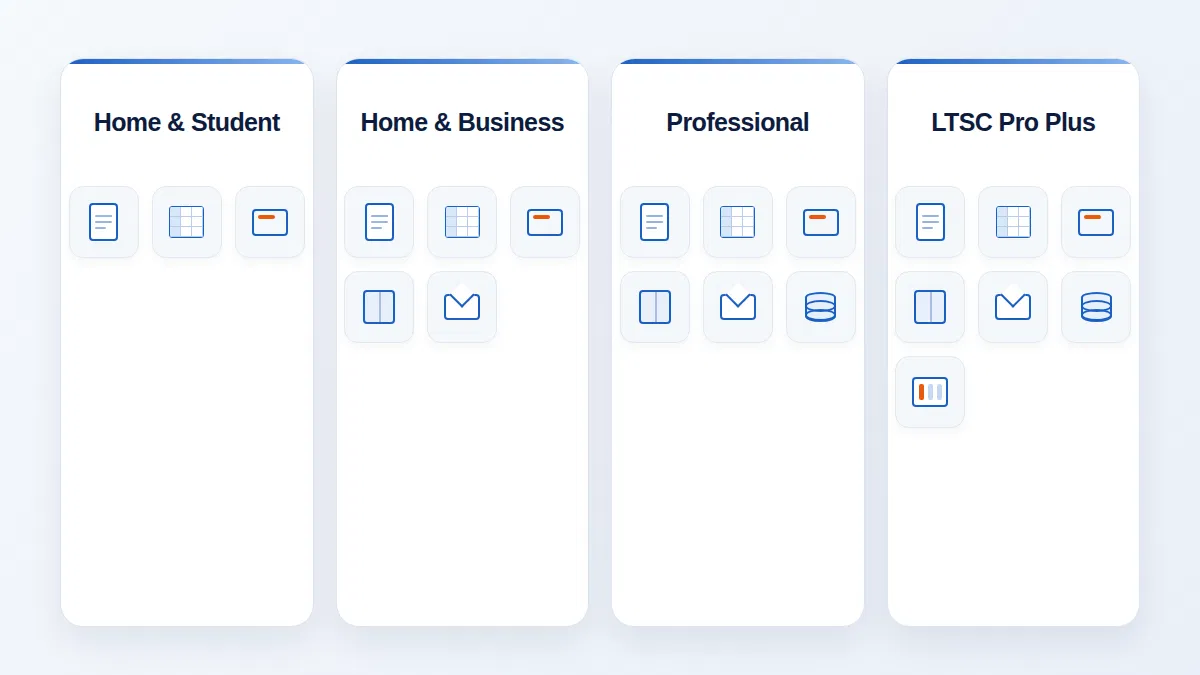
- Editions: Home & Student, Home & Business (adds Outlook), Professional (adds Outlook, Access and Publisher) and, for organizations, Office LTSC Professional Plus 2021 and Standard 2021.
- Download: sign in at account.microsoft.com, open Office apps and select Install; first-time installs start by redeeming the key at office.com/setup.
- Support: ended October 13, 2026. No new security updates after that date; the apps still open and work.
- Best supported alternative: Office 2024, also a one-time purchase, supported until October 9, 2029.
- What is Microsoft Office 2021?
- Office 2021 editions and included apps
- Does Microsoft Office 2021 include Outlook?
- Professional 2021 vs Professional Plus 2021
- What's new in Office 2021
- System requirements
- Microsoft Office 2021 download (official)
- How to activate Office 2021
- How to reinstall Microsoft Office 2021
- How to uninstall Office LTSC Professional Plus 2021
- Is Office 2021 still supported?
- Can you buy Office 2021 for a lifetime?
- Office 2021 vs Office 2024 vs Microsoft 365
- Troubleshooting common problems
- Frequently asked questions
What Is Microsoft Office 2021?
Microsoft Office 2021 is the version of Microsoft's productivity suite that followed Office 2019 and preceded Office 2024. It shipped on October 5, 2021, the same day as Windows 11, and it came in two families. The consumer and small-business editions (Home & Student 2021, Home & Business 2021 and Professional 2021) are sold as retail products and installed through a Microsoft account. The commercial editions, Office LTSC Professional Plus 2021 and Office LTSC Standard 2021, are sold through Microsoft's volume licensing programs to businesses, schools and governments and are deployed by IT departments.
What all versions share is the licensing model. Unlike Microsoft 365, which is a subscription that keeps adding features every month, Office 2021 is a perpetual licence: you pay once, the licence does not expire, and the feature set is frozen at what shipped. Microsoft describes Office 2021 for Windows as "locked in time": it received security and quality fixes during its support period but no new features. That makes it predictable and inexpensive over the long run, which is why so many households and small offices chose it.
Office 2021 runs natively on Windows 10 and Windows 11 and on the three most recent versions of macOS at the time of install, on both Intel and Apple Silicon Macs. It works offline once activated, saves in the same file formats as Microsoft 365 and Office 2024 (.docx, .xlsx, .pptx), and opens documents created in every version of Office back to Office 97. In day-to-day use it looks and feels almost identical to the current Microsoft 365 apps, because it shares their modern Fluent-style interface.
Microsoft Office 2021 Editions and Included Apps
Choosing the right edition is mostly a question of which apps you need. The table below lists what Microsoft includes in each Office 2021 suite.
| Edition | Word, Excel, PowerPoint | OneNote | Outlook | Publisher | Access | Platforms | How it is sold |
|---|---|---|---|---|---|---|---|
| Office Home & Student 2021 | Yes | Yes | No | No | No | 1 PC or Mac | Retail |
| Office Home & Business 2021 | Yes | Yes | Yes | No | No | 1 PC or Mac | Retail |
| Office Professional 2021 | Yes | Yes | Yes | Yes | Yes | 1 PC | Retail |
| Office LTSC Standard 2021 | Yes | Yes | Yes | Yes (PC) | No | PC or Mac | Volume licensing |
| Office LTSC Professional Plus 2021 | Yes | Yes | Yes | Yes | Yes | PC | Volume licensing |
Based on Microsoft's "Office 2021 and Office LTSC for Windows and Mac FAQ". Microsoft Teams is installed by default with Office 2021 and LTSC 2021 on Windows.
Office Home & Student 2021
The entry-level suite: Word, Excel, PowerPoint and OneNote for one PC or Mac. It is intended for personal, non-commercial use, which makes it a good fit for students and families who need to write documents, manage a household budget and build school presentations, but it does not include an email client.
Office Home & Business 2021
Everything in Home & Student plus Outlook, and a licence that allows commercial use. This is the edition most self-employed people, freelancers and small offices bought, especially on the Mac, because it is the most complete Office 2021 suite available for macOS.

Office Professional 2021
The most complete retail suite: Word, Excel, PowerPoint, OneNote, Outlook, Publisher and Access, for one Windows PC. Access is Microsoft's desktop database, used for inventories, client lists and small business applications; Publisher is the desktop publishing tool for flyers, brochures and newsletters. Both are Windows-only, which is why Office Professional 2021 is PC-only. MMKeys sells Microsoft Office Professional 2021 for PC; please read the support section of this guide before you buy any Office 2021 product.
Office LTSC Professional Plus 2021 and Standard 2021
LTSC stands for Long-Term Servicing Channel. These are the commercial versions for organizations that need a fixed, non-subscription Office that does not change month to month, such as regulated industries, factory floors or computers that never connect to the cloud. They are licensed per device through volume licensing agreements and installed with the Office Deployment Tool rather than a Microsoft account. Some cloud-connected features of consumer Office 2021, such as real-time co-authoring, modern comments and the visual refresh, are not included in the LTSC 2021 builds.
Does Microsoft Office 2021 Include Outlook?
It depends on the edition. Office Home & Student 2021 does not include Outlook. Outlook is included in Home & Business 2021, Professional 2021, LTSC Standard 2021 and LTSC Professional Plus 2021. Outlook 2021 is the classic desktop Outlook, with email, calendar, contacts and tasks for Microsoft 365, Exchange, Outlook.com, Gmail and any IMAP or POP account, plus Instant Search and the built-in Translator.
If you already have Home & Student, you have three choices for email: use the free Mail or the new Outlook app that comes with Windows, use Outlook on the web, or buy a version that includes desktop Outlook. Standalone Outlook 2021 also existed as a separate product, though most people find a Home & Business suite better value.
Microsoft Office Professional 2021 vs Office 2021 Professional Plus
These two names cause more confusion than any other part of Office 2021, and they are among the most searched variations of the keyword. They contain almost the same apps but are different products, sold differently.
| Office Professional 2021 | Office LTSC Professional Plus 2021 | |
|---|---|---|
| Who it is for | Individuals and small businesses | Organizations (businesses, schools, government) |
| How Microsoft sells it | Retail: one licence for one PC | Volume licensing agreements, per device |
| Apps | Word, Excel, PowerPoint, Outlook, OneNote, Publisher, Access | Word, Excel, PowerPoint, Outlook, OneNote, Publisher, Access |
| Installation | Microsoft account (account.microsoft.com / office.com/setup) | Office Deployment Tool and a configuration file, managed by IT |
| Activation | Product key linked to a Microsoft account | KMS server or MAK key managed by the organization |
| Cloud features (co-authoring, modern comments, visual refresh) | Included | Not included in LTSC 2021 |
| Support ended | October 13, 2026 | October 13, 2026 |
In short, Microsoft Office 2021 Pro Plus is a business product with the same app line-up as Office Professional 2021, but it is installed and activated by an organization rather than through a personal Microsoft account. If you are a home user or a small business without an IT department, the retail Professional 2021 or Home & Business 2021 editions are the ones designed for you. If a seller offers "Office 2021 Professional Plus" to individuals, ask exactly how it will be installed and activated before you buy.
What's New in Microsoft Office 2021
Compared with Office 2019, Office 2021 brought a long list of improvements that Microsoft 365 subscribers had received over the previous three years. The highlights, from Microsoft's "What's new in Office 2021" documentation:
Across all apps
- Visual refresh: a cleaner, rounded Fluent-style ribbon and neutral colour palette, matching Windows 11.
- Real-time co-authoring: work on the same document with others at the same time when it is saved to OneDrive or SharePoint (not in LTSC 2021).
- Modern comments: threaded comments with @mentions that notify colleagues (not in LTSC 2021).
- Microsoft Search box: find commands, help and content from the top of the window.
- Stock media: a library of images, icons and illustrations to insert into documents.
- Save as you go: automatic saving of files stored on OneDrive or SharePoint.
- Accessibility Checker and improved Draw tab with Point Eraser, Ruler and Lasso.
- OpenDocument Format (ODF) 1.3 support.
Excel 2021
- XLOOKUP: the modern replacement for VLOOKUP and HLOOKUP that searches in any direction and handles missing values.
- Dynamic arrays with FILTER, SORT, SORTBY, UNIQUE, SEQUENCE and RANDARRAY: one formula returns a whole range of results.
- LET (name parts of a formula) and XMATCH.
- Faster SUMIF, COUNTIF and AVERAGEIF calculations, plus Sheet Views for shared workbooks.

Word, PowerPoint and Outlook 2021
- Word: full Dark Mode (including a dark page), Line Focus for distraction-free reading, and improved Immersive Reader.
- PowerPoint: Record Slide Show with presenter video, ink and laser pointer; Ink Replay animation; screen-reader reading order.
- Outlook: Instant Search, built-in Translator, and inking in emails.
Microsoft Office 2021 System Requirements
| Component | Windows PC | Mac |
|---|---|---|
| Operating system | Windows 10 or Windows 11 (Microsoft now lists Windows 11 as the supported OS) | One of the three most recent macOS versions |
| Processor | 1.1 GHz or faster, 2 cores | Intel or Apple Silicon |
| Memory | 4 GB RAM | 4 GB RAM |
| Storage | 4 GB available disk space | 10 GB available disk space |
| Display | 1280 x 768 (64-bit Office required for 4K and higher) | 1280 x 800 |
| Graphics | DirectX 9 or later | — |
| Internet | Required to redeem the key, install and activate; occasional connection keeps the apps activated | |
Source: Microsoft Support, "Office suites for individuals and families" system requirements.
Choose the 64-bit version of Office 2021 unless you rely on an old 32-bit add-in; it is the default and handles very large Excel workbooks better. Note that Windows 10 itself reached end of support on October 14, 2025, so a PC that runs Windows 10 needs Extended Security Updates or an upgrade to Windows 11 to stay protected. Our Windows 11 upgrade guide walks through that step.
Microsoft Office 2021 Download: The Official Way
"Microsoft Office 2021 download" is one of the most popular searches for this product, and it is also where most people run into trouble. The key point: Microsoft does not publish a public download link or ISO for retail Office 2021. The installer is tied to your licence and is downloaded from your Microsoft account. Anything offered as a free "Office 2021 full version download" on a third-party site is either unofficial or pirated and should be avoided; those files are a common source of malware and activation problems.
First-time download with a new product key
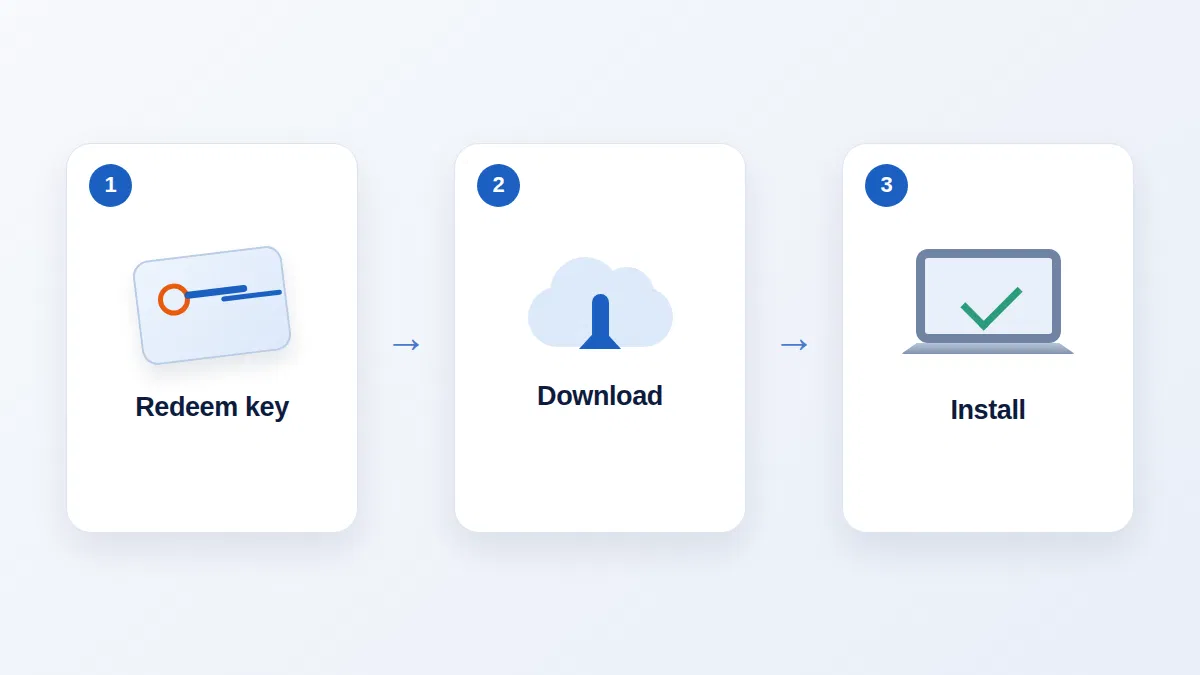
- Go to office.com/setup (also reachable at microsoft.com/microsoft-365/setup).
- Sign in with the Microsoft account you want the licence attached to, or create a free one. Choose carefully: this account is how you will reinstall Office later.
- Enter your 25-character product key, choose your country or region and language, and confirm. The licence is now permanently linked to that account.
- Select Install Office. Your browser downloads a small setup file (
OfficeSetup.exeon Windows, a.pkgon Mac). - Run the file. Office 2021 downloads from Microsoft's servers and installs. When you see "You're all set! Office is installed now", you are done.
Choosing 32-bit or 64-bit, or another language
On the Install page, select Other options or the language dropdown before downloading. You can pick a different language (English, French and Spanish are all available for Canada and the US) and switch between 64-bit and 32-bit.
Office 2021 for Mac
The process is the same. After redeeming the key, download the installer package from your account, open it, follow the prompts, then open Word or Excel and sign in with the same Microsoft account to activate.

Volume-licensed Office LTSC 2021
Office LTSC Professional Plus 2021 and Standard 2021 are not downloaded from a Microsoft account. Administrators download the Office Deployment Tool (ODT) from Microsoft, create a configuration.xml file that names the product (ProPlus2021Volume or Standard2021Volume) and the PerpetualVL2021 update channel, then run setup.exe /download and setup.exe /configure. The Office Customization Tool at config.office.com builds the configuration file for you.
How to Activate Microsoft Office 2021
For retail editions, activation usually happens automatically. When you open Word, Excel or any Office 2021 app for the first time after installing from your account, Office checks the licence on your Microsoft account and activates in a few seconds. If the Activation Wizard appears instead, sign in with the account you used at office.com/setup.
- Check status: File > Account. "Product Activated" under Product Information means you are licensed.
- One PC or Mac: the one-time-purchase version is licensed for one install. If you install on a new computer, sign out of Office on the old one or deactivate it from your account first.
- Retail keys are single-use: once redeemed, a key is tied to your Microsoft account permanently. You do not need it again; reinstall from the account.
- LTSC editions activate through the organization's KMS host or with a MAK key, managed by IT.
Looking for a genuine Office licence?
MMKeys supplies genuine Microsoft licences to customers in the USA and Canada with email delivery and installation support. Because Office 2021 is now out of support, we recommend Office 2024 for most new purchases.
All Office products Office Professional 2021 Office 2024 for MacHow to Reinstall Microsoft Office 2021
Reinstalling is common after a Windows reset, a new hard drive, or a corrupted Office installation. As long as your licence was redeemed to a Microsoft account, you do not need the product key again.
- Go to account.microsoft.com and sign in with the Microsoft account associated with your Office 2021 licence.
- On the Overview page, select Office apps (or Services & subscriptions in some regions) and find Office Home & Student, Home & Business or Professional 2021.
- Select Install. Use the dropdown if you need a different language or the 32-bit version.
- Run the downloaded file and wait for "You're all set!".
- Open any Office app; it activates automatically when it detects your account.
Repair instead of reinstalling
If Office opens but misbehaves (crashes, missing ribbons, files that will not save), try a repair first. On Windows, open Settings > Apps > Installed apps, find Microsoft Office 2021, select Modify, then choose Quick Repair. If that does not help, run Online Repair, which reinstalls Office from Microsoft's servers while keeping your licence and documents untouched.
How to Uninstall Microsoft Office LTSC Professional Plus 2021
You may need to remove Office LTSC Professional Plus 2021, or any Office 2021 edition, before installing Office 2024 or Microsoft 365, because mixing versions on one PC causes conflicts.
Method 1: Windows Settings
- Open Settings > Apps > Installed apps (Windows 11) or Settings > Apps > Apps & features (Windows 10).
- Search for "Office" and select Microsoft Office LTSC Professional Plus 2021 (or your edition).
- Select Uninstall, confirm, and restart the PC when it finishes.
Method 2: Office Deployment Tool (for IT administrators)
For volume-licensed LTSC installations, create a configuration.xml that contains <Remove All="TRUE" /> (or a <Remove> element listing ProPlus2021Volume) and run setup.exe /configure configuration.xml. This removes Office cleanly across many PCs at once.
Method 3: Microsoft's Uninstall Office tool
If Office will not uninstall from Settings, Microsoft's support article "Uninstall Office from a PC" provides a downloadable uninstall support tool that removes all traces of Office, including stubborn leftovers. Restart afterwards.
Uninstalling Office does not delete your documents. Files in Documents, OneDrive or anywhere else stay where they are, and a retail licence stays in your Microsoft account so you can reinstall later.
Is Microsoft Office 2021 Still Supported?
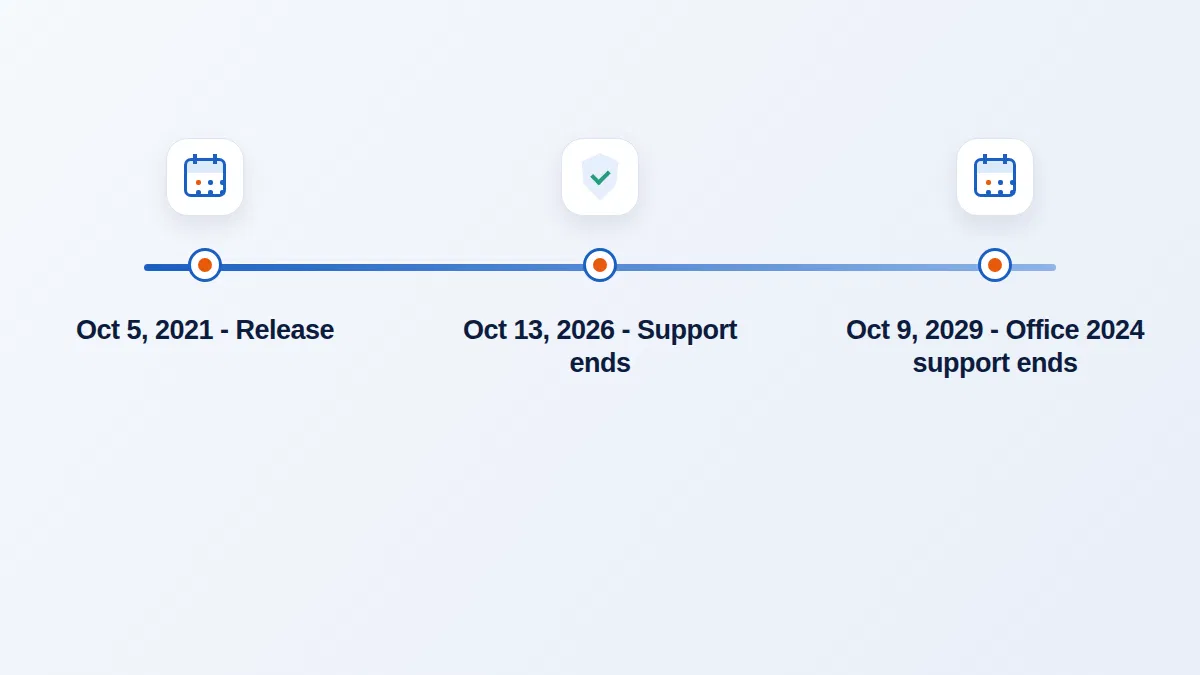
No. Microsoft ended support for Office 2021 (Home & Student, Home & Business and Professional, for Windows and Mac) and for Office LTSC 2021 on October 13, 2026. Office 2021 followed Microsoft's Modern Lifecycle Policy with a five-year support period and no extended support. Microsoft's lifecycle announcement states that after this date it no longer provides technical support, bug fixes or security updates.
What this means if you already use Office 2021
- Your apps keep working. Office 2021 does not stop launching or delete anything. Your licence remains valid.
- No more security patches. Newly discovered vulnerabilities, for example in how Word or Excel opens files, will not be fixed. Over time this raises the risk from malicious attachments.
- No technical support from Microsoft, and services such as Outlook connections to Microsoft 365 or Exchange may eventually require a supported version.
- Compliance: businesses that must use supported software (for example for cyber insurance or industry regulations) should plan to upgrade.
If you keep using Office 2021 for now, reduce the risk: keep Windows or macOS fully updated, keep Microsoft Defender or another antivirus active, leave Protected View on for files from the internet, and avoid enabling macros in documents you did not expect. Plan to move to Office 2024 or Microsoft 365.
What Microsoft recommends
Microsoft recommends Microsoft 365 for most people. For those who prefer a one-time purchase, Office 2024 (consumer) and Office LTSC 2024 (commercial) are the current perpetual versions, supported until October 9, 2029.
Can You Buy Microsoft Office 2021 for a Lifetime?
Yes, in the sense that Office 2021 is a perpetual licence: you pay once and the licence never expires or asks for renewal. "Lifetime" in Office terms means lifetime use of that version on one computer, not lifetime updates. It does not upgrade to Office 2024 for free, Microsoft offers no discounted upgrade path between one-time versions, and since October 13, 2026 it no longer receives security updates.
That makes the buying decision clearer in 2026. A perpetual licence is still the most economical way to own Office, but the version you buy should be one with years of support left. Office 2024 gives you the same one-time-purchase model with support until October 2029. Office 2021 remains reasonable only if you need to match existing Office 2021 installations in an office, or for a computer that is used offline for simple tasks.
Office 2021 vs Office 2024 vs Microsoft 365
| Office 2021 | Office 2024 | Microsoft 365 | |
|---|---|---|---|
| Payment | One-time purchase | One-time purchase | Monthly or yearly subscription |
| Security updates | Ended October 13, 2026 | Until October 9, 2029 | Continuous while subscribed |
| New features | None (frozen at 2021) | None after release (frozen at 2024) | Monthly |
| Devices | 1 PC or Mac | 1 PC or Mac | Up to 5 signed-in devices per user, plus phones and tablets |
| Cloud storage | None included | None included | 1 TB OneDrive per user |
| Publisher | Professional 2021 only | Not included | Retired by Microsoft in 2026 |
| Best for | Matching existing 2021 installs | Most buyers who want to pay once | Users who want the newest features and cloud storage |
Our article Office 2024 vs Microsoft 365 explains the subscription-versus-perpetual decision in detail, and the guide to getting Microsoft Office for free in Canada and the USA covers the legitimate free options, such as Office on the web and school accounts. If you need Visio or Project alongside Office 2021, MMKeys also offers Visio 2021 Professional and Project 2021 Professional.
Troubleshooting Common Office 2021 Problems
"This product key has already been used"
Retail keys can be redeemed only once. If you redeemed it before, Office is already in a Microsoft account; sign in at account.microsoft.com with that account and install from there. If you never redeemed it, contact the seller with a screenshot of the message.
Office says "Unlicensed Product" or asks to activate again
Make sure you are signed in to Office (File > Account) with the account that owns the licence. Remove other Office versions or Microsoft 365 trials installed on the same PC, then run Quick Repair. Pre-installed Microsoft 365 trials on new laptops are a frequent cause.
"We can't install Office because you already have a newer version"
Two versions that use different installation technologies cannot coexist. Uninstall the other version (often a Microsoft 365 trial) using the steps above, restart, and install Office 2021 again.
Installation stuck or fails partway
Check your internet connection, pause VPNs and third-party firewalls, free up at least 4 GB of disk space, and try the offline installer option on the Install page if your connection is unreliable. Restart before trying again.
Outlook missing after install
You most likely have Office Home & Student 2021, which does not include Outlook. Check File > Account to confirm your edition.
Office won't install on Windows 7 or 8.1
Office 2021 requires Windows 10 or later. Older Windows versions are not supported and are also out of security support themselves.
Summary
Microsoft Office 2021 is a one-time-purchase Office suite released in October 2021 in Home & Student, Home & Business (with Outlook) and Professional (with Outlook, Access and Publisher) editions for individuals, plus LTSC Standard and Professional Plus 2021 for organizations. You download and reinstall it from your Microsoft account, never from third-party sites, and activation is tied to that account. Microsoft ended support on October 13, 2026, so existing installations still work but no longer receive security updates. If you are buying today, Office 2024, supported until October 9, 2029, is the better one-time purchase for most people.
Frequently Asked Questions
What is Microsoft Office 2021?
Microsoft Office 2021 is the one-time-purchase version of Office released on October 5, 2021. It includes Word, Excel and PowerPoint, plus Outlook, OneNote, Access or Publisher depending on the edition, licensed for one PC or Mac with no subscription.
Is Microsoft Office Professional Plus 2021 still supported?
No. Office LTSC Professional Plus 2021, like all Office 2021 editions, reached end of support on October 13, 2026. It continues to work, but Microsoft no longer provides security updates, bug fixes or technical support.
Does Microsoft Office 2021 include Outlook?
Office Home & Business 2021, Office Professional 2021, and Office LTSC Standard and Professional Plus 2021 include Outlook. Office Home & Student 2021 does not.
How do I download Microsoft Office 2021?
Redeem your product key at office.com/setup, signing in with a Microsoft account, then select Install. To download again later, sign in at account.microsoft.com, open Office apps and select Install. Microsoft does not offer a public ISO for retail Office 2021.
How do I reinstall Microsoft Office 2021?
Sign in at account.microsoft.com with the account linked to your licence, open Office apps, select Install next to Office 2021, run the setup file, and open any app to activate. You do not need the product key again.
How do I uninstall Microsoft Office LTSC Professional Plus 2021?
Open Settings > Apps > Installed apps, select Microsoft Office LTSC Professional Plus 2021 and choose Uninstall. IT administrators can also remove it with the Office Deployment Tool using a configuration file with a Remove element.
Can you buy Microsoft Office 2021 for a lifetime?
Office 2021 is a perpetual licence, so you pay once and can use that version indefinitely on one computer. It does not include free upgrades, and since October 13, 2026 it no longer receives security updates.
What is the difference between Office Professional 2021 and Office 2021 Professional Plus?
Both include Word, Excel, PowerPoint, Outlook, OneNote, Access and Publisher. Professional 2021 is the retail edition for individuals and small businesses, installed through a Microsoft account. Professional Plus 2021 is the LTSC volume-licensed edition for organizations, deployed and activated by IT.
Can I install Office 2021 on more than one computer?
The one-time-purchase editions are licensed for one install on one PC or Mac. To move it, deactivate or sign out on the old computer, then install from your Microsoft account on the new one.
Does Office 2021 work on Mac?
Home & Student 2021 and Home & Business 2021 are available for Mac on Intel and Apple Silicon models running one of the three most recent macOS versions. Professional 2021 is Windows-only because Access and Publisher are not available on Mac.
What happens to Office 2021 after end of support?
It keeps opening and working normally, and your documents are not affected. Microsoft no longer fixes newly found security vulnerabilities or provides support, so the risk of using it grows over time.
Should I buy Office 2021 or Office 2024?
For most buyers in 2026, Office 2024 is the better choice: it is also a one-time purchase and is supported until October 9, 2029. Office 2021 makes sense mainly when you need to match existing Office 2021 installations.
What are the system requirements for Office 2021?
On Windows: Windows 10 or 11, a 1.1 GHz dual-core processor, 4 GB RAM, 4 GB disk space and a 1280 x 768 display. On Mac: one of the three latest macOS versions, 4 GB RAM and 10 GB disk space.
Can I upgrade from Office 2021 to Office 2024 for free?
No. Microsoft does not offer a free or discounted upgrade between one-time-purchase versions. You buy Office 2024 separately, uninstall Office 2021 and install the new version.
Is it safe to download Office 2021 from third-party websites?
No. Only download Office from your Microsoft account or Microsoft's official deployment tools. Free "full version" downloads elsewhere are unofficial, may be modified, and often contain malware or illegal activators.
Does Office 2021 include Microsoft Teams?
Yes. Microsoft Teams is installed by default with Office 2021 and Office LTSC 2021 on Windows, and the free version of Teams is also available separately for Windows and Mac.
Official Microsoft Sources
- Office 2021 lifecycle (Microsoft Learn)
- Office LTSC 2021 end of support announcement
- Office 2024 lifecycle
- Office 2021 and Office LTSC for Windows and Mac FAQ
- What's new in Office 2021
- Office system requirements for individuals and families
- Download and install or reinstall Office 2021
Last reviewed: November 2026. Microsoft may change its products, pages and support programs; check the sources above for the latest information.