




Windows 10 Home ISO Download from Microsoft: Complete Installation Guide (2026)

If you are looking for a Windows 10 Home ISO from Microsoft, the short answer is this: Microsoft still provides the official Windows 10 installation files free of charge, through the Media Creation Tool and a direct ISO download page. There is no separate "Home" ISO. Microsoft's Windows 10 ISO is a multi-edition image that contains Windows 10 Home and Windows 10 Pro, and the edition that gets installed depends on the product key or digital licence already tied to your PC, or on the edition you pick during setup.
This guide walks through the whole process for the USA and Canada in 2026: where the official download lives, how to create a bootable USB, how to run a clean installation or an in-place reinstall, how activation works, and what Windows 10's end of support in October 2025 means for anyone still installing it today. Everything here uses Microsoft's own tools and documentation. We do not link to modified, "pre-activated" or third-party ISO files, and we recommend you avoid them too.
Quick answer
- Where to download: microsoft.com/software-download/windows10 (Media Creation Tool on Windows PCs; direct ISO download on other devices).
- Which file: "Windows 10 (multi-edition ISO)", version 22H2, 64-bit for almost every PC made since 2010.
- Edition: Home and Pro are in the same ISO. Setup picks Home if your PC has a Windows 10 Home licence or you enter a Home key.
- Licence: the ISO is free, but a licence is not included. You need a digital licence already on the PC or a genuine product key.
- Support status: Windows 10 reached end of support on October 14, 2025. Consumer Extended Security Updates (ESU) are available until October 12, 2027.
- What is a Windows 10 Home ISO file?
- How to download the Windows 10 ISO from Microsoft
- Why there is no separate "Home" ISO
- 64-bit vs 32-bit
- Windows 10 Home system requirements
- How to create a bootable Windows 10 USB
- How to install Windows 10 Home step by step
- How to activate Windows 10 Home
- Windows 10 Home vs Windows 10 Pro
- Common download and installation errors
- Is Windows 10 Home still safe to use in 2026?
- Frequently asked questions
What Is a Windows 10 Home ISO File?
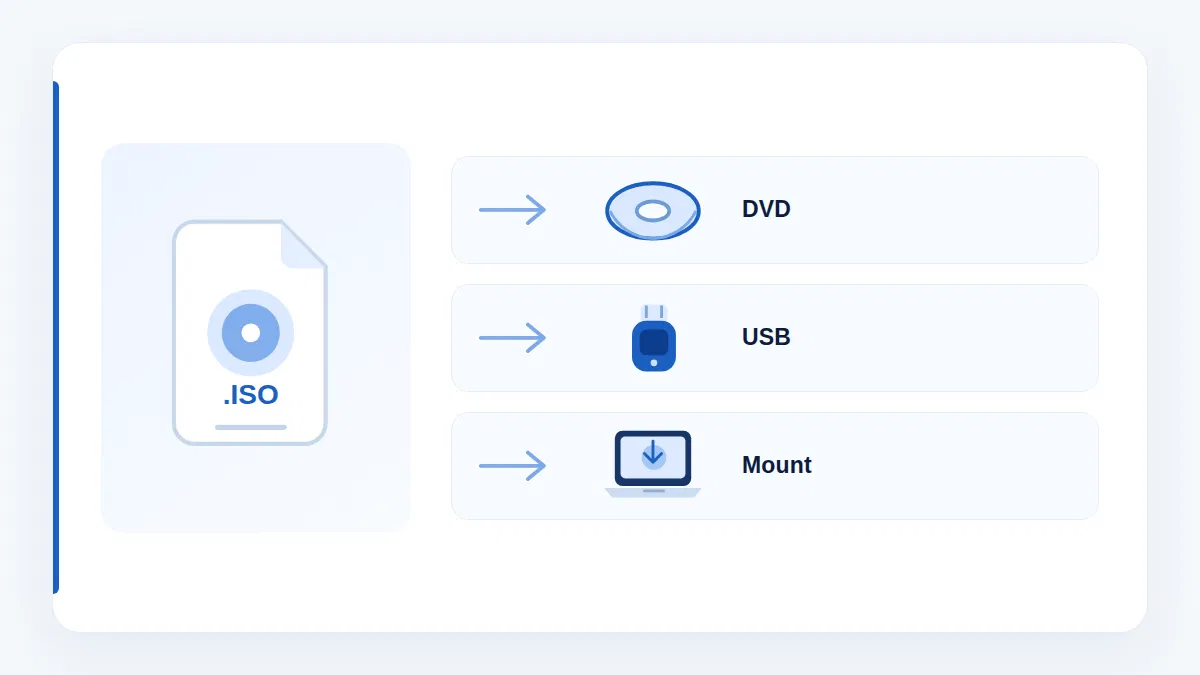
An ISO file is a single-file copy of an entire installation disc. The name comes from ISO 9660, the standard that defines the file system used on CDs and DVDs. When Microsoft publishes Windows 10 as an ISO, it is giving you the exact contents of the Windows installation DVD in one file (about 5.5 to 6 GB for the 64-bit version) that you can burn to a DVD, write to a USB flash drive, or mount directly inside Windows as a virtual drive.
People search for a "Windows 10 Home ISO" for a handful of reasons:
- Clean installation: wiping a slow or infected PC and starting fresh with a new copy of Windows.
- New or replaced drive: installing Windows 10 on a new SSD when the old drive has failed or been replaced.
- Repair: running an in-place upgrade (reinstalling Windows over itself) to fix system file corruption while keeping programs and files.
- Virtual machines: installing Windows 10 Home in Hyper-V, VirtualBox or VMware for testing or legacy software.
- Building a PC: a self-built computer has no operating system until you install one.
- Recovery media: keeping a bootable USB on hand for the day Windows refuses to start.
Windows 10 comes in several editions. For home users the relevant ones are Windows 10 Home (the edition on most consumer laptops and desktops) and Windows 10 Pro (which adds BitLocker, Remote Desktop hosting, Hyper-V, Group Policy and domain join). Education, Enterprise and the "N" editions sold in Europe without media features also exist, but they are not what most people searching this topic need. Our Windows 10 licence key guide covers the differences between the licence types in more detail.
How to Download the Windows 10 ISO from Microsoft
Microsoft's official download page is https://www.microsoft.com/software-download/windows10. As of this writing the page is still live and still offers the current release, Windows 10 version 22H2. What you see on it depends on the device you open it with.
Method 1: The Media Creation Tool (on a Windows PC)
If you open the download page from a Windows 7, 8.1, 10 or 11 PC, Microsoft shows the Media Creation Tool under "Create Windows 10 installation media". This small program downloads the installation files for you and can either write them straight to a USB drive or save them as an ISO file.
- Go to the download page and click Download Now under "Create Windows 10 installation media". The file is called
MediaCreationTool22H2.exe(the exact name may vary). - Right-click the downloaded file and choose Run as administrator. Accept the Microsoft licence terms.
- Choose Create installation media (USB flash drive, DVD, or ISO file) for another PC. The other option, "Upgrade this PC now", reinstalls Windows on the current machine without creating media.
- On the next screen, untick Use the recommended options for this PC if you want to choose the language, edition and architecture yourself. The edition list shows "Windows 10"; this single entry is the multi-edition image containing both Home and Pro.
- Pick USB flash drive to have the tool build a bootable drive directly, or ISO file to save a
Windows.isofile you can use later. - Wait for the download and verification to finish. On a typical broadband connection this takes 10 to 30 minutes.
Method 2: Direct ISO download (on a Mac, Linux, phone or tablet)
If you open the same page from a device that cannot run the Media Creation Tool, Microsoft redirects you to Download Windows 10 Disc Image (ISO File). This page lets you download the ISO directly in your browser:
- Under "Select edition", choose Windows 10 (multi-edition ISO) and click Confirm. The page states that this image is valid for both Windows 10 Home and Windows 10 Pro.
- Select the product language (for the USA and Canada, "English" is the American English build and "English International" is the UK English build; "French Canadian" is also available) and click Confirm.
- Click 64-bit Download or 32-bit Download. The links are valid for 24 hours.
Some guides describe changing your browser's user-agent string on a Windows PC so Microsoft serves the direct ISO page instead of the tool. It works, and it is useful if the Media Creation Tool fails on your machine, but Microsoft does not document it and the Media Creation Tool remains the supported route on Windows.
Verify the download (optional but recommended)
Microsoft publishes SHA-256 hashes for every language and architecture on the ISO page. To check your file on Windows, open PowerShell and run:
Get-FileHash C:\Path\To\Windows.iso -Algorithm SHA256
If the hash matches the one listed for your language and architecture, the file is complete and untouched. If it does not match, delete it and download again. A corrupted ISO is one of the most common causes of installation errors later on.
Why There Is No Separate "Windows 10 Home" ISO
This confuses a lot of people. Microsoft does not publish one ISO for Home and another for Pro. Since Windows 10 version 1511, the consumer image has been a multi-edition ISO. Inside the install.esd or install.wim file on the media are several editions: Home, Home N, Pro, Pro N, Education and Pro Education, among others. Which one gets installed is decided in one of three ways:
- The firmware licence. Most laptops and pre-built desktops sold since 2012 store the OEM product key in the UEFI firmware. Setup reads that key and automatically installs the matching edition. If your PC shipped with Windows 10 Home, Setup installs Home and skips the edition menu.
- The product key you enter. If you type a Windows 10 Home key when Setup asks for one, Home is installed. A Pro key installs Pro.
- The edition menu. If there is no firmware key and you click "I don't have a product key", Setup displays a list of editions and lets you choose Windows 10 Home manually. You can activate later with a digital licence or a key.
So when you search for a "Windows 10 Home ISO", the file you need is the standard Windows 10 multi-edition ISO from Microsoft. The Home part is handled by your licence, not by the download.
Windows 10 Home ISO 64-bit vs 32-bit
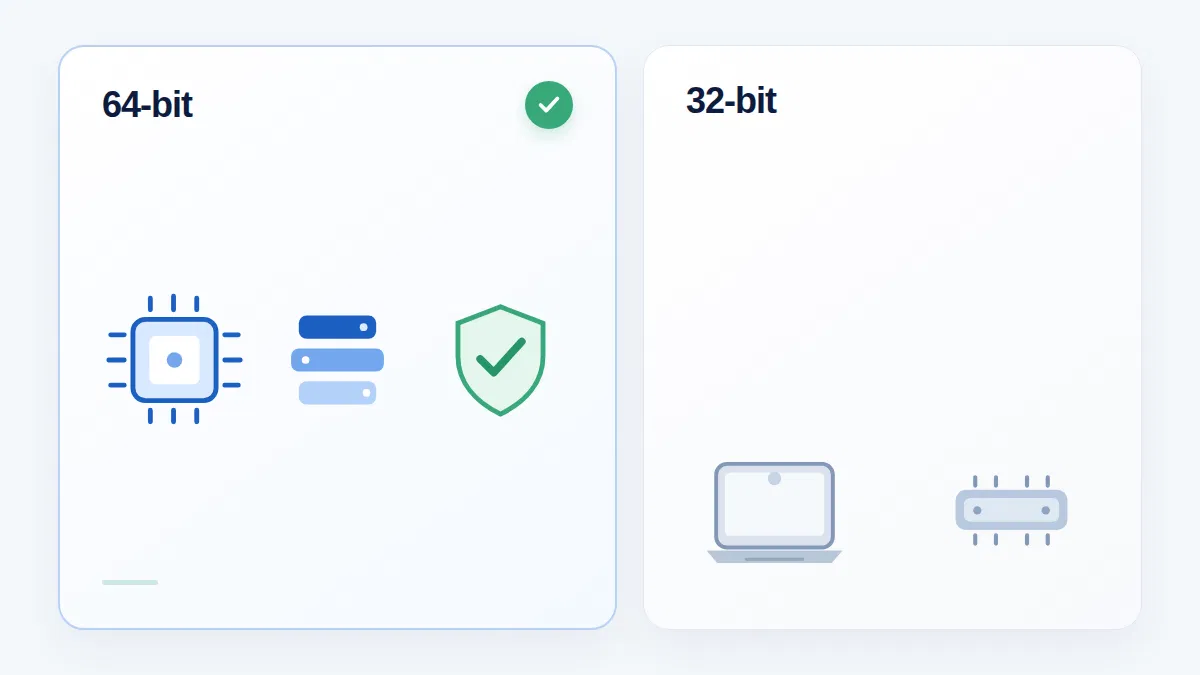
Microsoft offers both 64-bit (x64) and 32-bit (x86) versions of the ISO. The architecture refers to the processor instruction set Windows is compiled for, and it has practical consequences:
| Feature | Windows 10 Home 64-bit | Windows 10 Home 32-bit |
|---|---|---|
| Maximum RAM | 128 GB | 4 GB (about 3.2 GB usable) |
| Processor required | 64-bit CPU (every Intel/AMD desktop or laptop chip since roughly 2007) | Any 32-bit or 64-bit CPU |
| Runs 64-bit apps and games | Yes | No |
| Runs 32-bit apps | Yes (via WoW64) | Yes |
| Runs 16-bit apps | No | Yes (via NTVDM) |
| Driver availability | Excellent | Declining; many vendors stopped shipping 32-bit drivers |
| Security (DEP, PatchGuard, driver signing) | Mandatory | Partial |
| ISO size (approx.) | 5.8 GB | 4.1 GB |
Choose 64-bit unless you have a specific reason not to. Windows 10 is the last version of Windows available in 32-bit (Windows 11 is 64-bit only), and in 2026 the only PCs that genuinely need the 32-bit build are old netbooks with Intel Atom N-series processors, machines with under 2 GB of RAM, or systems that must run 16-bit legacy software. Note that the architecture of your current Windows does not limit you: a PC running 32-bit Windows 10 on a 64-bit CPU can be clean-installed with the 64-bit ISO, but not upgraded in place.
To check your processor, open Settings > System > About and look at "System type". It will say "64-bit operating system, x64-based processor" or similar. The phrase after the comma is the one that matters.
Windows 10 Home System Requirements
Microsoft's published minimum requirements for Windows 10 are modest, which is one reason the operating system still runs on so many older machines:
| Component | Microsoft minimum | Practical recommendation for 2026 |
|---|---|---|
| Processor | 1 GHz or faster processor or SoC | Dual-core 2 GHz or faster; 64-bit |
| RAM | 1 GB for 32-bit, 2 GB for 64-bit | 8 GB (4 GB is usable for light tasks) |
| Storage | 32 GB or larger hard disk | 120 GB SSD or larger; an SSD makes a bigger difference than any other upgrade |
| Graphics | DirectX 9 or later with WDDM 1.0 driver | Any integrated graphics from the last decade |
| Display | 800 x 600 | 1366 x 768 or higher |
| Internet | Required for updates and some features; needed for the download and for online activation | Broadband |
Source: Microsoft, "Windows 10 system requirements" (support.microsoft.com).
The minimum will boot and run Windows 10 Home, but with 2 GB of RAM and a mechanical hard drive the experience is slow. If your hardware is close to the minimum, a used SSD and a RAM upgrade usually cost less than a new PC and transform the machine. If your hardware comfortably exceeds Windows 11's requirements (an 8th-generation Intel or Ryzen 2000 processor or newer, TPM 2.0, UEFI with Secure Boot, 4 GB RAM, 64 GB storage), think carefully before installing Windows 10 in 2026; the section on support below explains why.
How to Create a Bootable Windows 10 USB
A bootable USB is the practical way to install Windows 10 on a modern PC, since most no longer have DVD drives. You need a USB flash drive of 8 GB or more. The process erases everything on the drive, so copy off anything you want to keep first.
Option A: Let the Media Creation Tool do it
This is the simplest route and needs no extra software. Run the Media Creation Tool as described above, choose "Create installation media for another PC", and when asked which media to use pick USB flash drive. Select the drive from the list, click Next, and the tool downloads Windows and writes a bootable drive in one step. When it says "Your USB flash drive is ready", you are done.
Option B: Write an ISO to USB with Rufus
If you already have the ISO file (for example, you downloaded it on a Mac or you saved it for later), the free open-source tool Rufus writes it to a USB drive:
- Plug in the USB drive and open Rufus. It should detect the drive under "Device"; double-check it is the right one.
- Click SELECT and choose your
Windows.iso. - Leave "Image option" as Standard Windows installation.
- Set "Partition scheme" to GPT and "Target system" to UEFI (non CSM) for any PC made after about 2012. Use MBR and BIOS (or UEFI-CSM) only for older machines that boot in legacy BIOS mode.
- Click START, confirm that the drive will be erased, and wait for the green "READY" bar.
Option C: Make a USB on a Mac
Download the ISO from the direct download page, then use a tool such as Rufus in a Windows virtual machine, or format the USB drive as MS-DOS (FAT) with a GUID partition map in Disk Utility and copy the ISO contents over. The install.wim file in the Microsoft ISO is larger than 4 GB, so a plain FAT32 copy fails; Rufus works around this automatically, which is why we recommend it when possible.
Booting from the USB
Insert the drive into the target PC, power it on, and press the boot-menu key as soon as the manufacturer logo appears. Common keys are F12 (Dell, Lenovo, Acer), F9 (HP), F8 (ASUS), F11 (MSI) and Esc or F2 on many others. Choose the entry that starts with "UEFI:" followed by your USB drive's name. If the PC ignores the drive and boots into Windows, enter the firmware setup and either move USB above the internal disk in the boot order or temporarily disable Fast Boot.
How to Install Windows 10 Home Step by Step
There are two kinds of installation. An in-place upgrade runs Setup from inside your existing Windows and keeps your files, apps and settings; it is the right choice for repairing a broken installation. A clean installation boots from the USB, erases the system drive and installs a fresh copy; it is the right choice for a new drive, a new PC, or when you want to start over. The steps below cover the clean installation, with notes where the upgrade differs.

Step 1: Back up your files
A clean installation deletes everything on the drive you install to, including Documents, Pictures, Desktop files, saved games, browser profiles and any programs. Copy what you need to an external drive or cloud storage before you start. Also note down product keys for software you will need to reinstall, and make sure you know your Microsoft account password, since you will sign in with it during setup.
Step 2: Check your Windows licence
Before you wipe the drive, open Settings > Update & Security > Activation. If it says "Windows is activated with a digital license linked to your Microsoft account", you can reinstall the same edition on the same hardware and it will reactivate automatically. If you have a product key on a sticker, in an email or in a retail box, keep it handy. If you have neither, you will need to obtain a genuine Windows 10 Home licence to activate after installation.
Step 3: Boot from the installation media
Start the PC from the USB drive as described above. After a moment you will see the Windows Setup window asking for language, time and currency format, and keyboard layout. Set these to your preference (English (United States) or English (Canada) and the US keyboard for most readers) and click Next, then Install now.
Step 4: Enter a product key (or skip)
Setup asks you to "Activate Windows" with a product key. You have three choices:
- Enter a genuine Windows 10 Home key if you have one. Setup will install Home.
- Click I don't have a product key if the PC previously had Windows 10 activated (digital licence) or if the key is embedded in the firmware. Windows will activate on its own after installation.
- Click I don't have a product key if you plan to buy a licence later. You can run Windows unactivated for a while with minor limitations (a watermark and no personalisation settings).
Step 5: Select the edition
If the firmware contains no key and you skipped the key prompt, Setup shows a list of editions. Choose Windows 10 Home (not Home N, Pro or Education) so that it matches the licence you have or intend to buy. Installing Pro and then trying to activate it with a Home key does not work; you would have to reinstall. Accept the licence terms on the next screen.
Step 6: Choose "Custom" and select the drive
When asked "Which type of installation do you want?", choose Custom: Install Windows only (advanced). (The "Upgrade" option is greyed out when booting from media; for an in-place upgrade you run setup.exe from inside Windows instead.)
On the partition screen, select the drive you want to install to. For a true clean installation, select each partition on that drive in turn and click Delete until only "Unallocated Space" remains, then select the unallocated space and click Next. Setup creates the required EFI, MSR, Windows and recovery partitions automatically. Be careful here: if you have more than one drive, make sure you delete partitions only on the intended one. Drive sizes are the easiest way to tell them apart.
Step 7: Let Setup copy files and restart
Setup copies files, installs features and updates, then restarts several times. Do not remove the USB drive until Windows boots to the setup wizard rather than the Windows Setup window; on most PCs you can pull it after the first restart. On an SSD this phase takes 5 to 15 minutes.
Step 8: Out-of-box setup
Windows 10's first-run wizard asks for your region, keyboard, network, Microsoft account (or a local account if you choose "Offline account"), a PIN, and privacy settings such as location, diagnostics and advertising ID. Read the privacy screens; every toggle can be turned off without affecting basic functionality.
Step 9: Drivers and updates
Once you reach the desktop, open Settings > Update & Security > Windows Update and click Check for updates. Windows 10 22H2 media from Microsoft is current to the date the ISO was built, so there will be cumulative updates to install, and Windows Update will usually pull in graphics, audio, network and chipset drivers on its own. For laptops, also check the manufacturer's support page for the model-specific drivers and firmware (touchpad, fingerprint reader, power management) that Windows Update sometimes misses.
Step 10: Confirm activation
Go to Settings > Update & Security > Activation. If it says "Windows is activated", you are finished. If not, the next section explains what to do.
setup.exe, choose "Keep personal files and apps", and let Setup replace the operating system files. Your programs and data stay in place. This fixes most corruption that sfc /scannow and DISM cannot.How to Activate Windows 10 Home
Downloading the ISO gives you the installation files; it does not give you a licence. Activation is how Windows checks with Microsoft that your copy is licensed for the hardware it is installed on. There are two legitimate ways to activate Windows 10 Home:
Digital licence (digital entitlement)
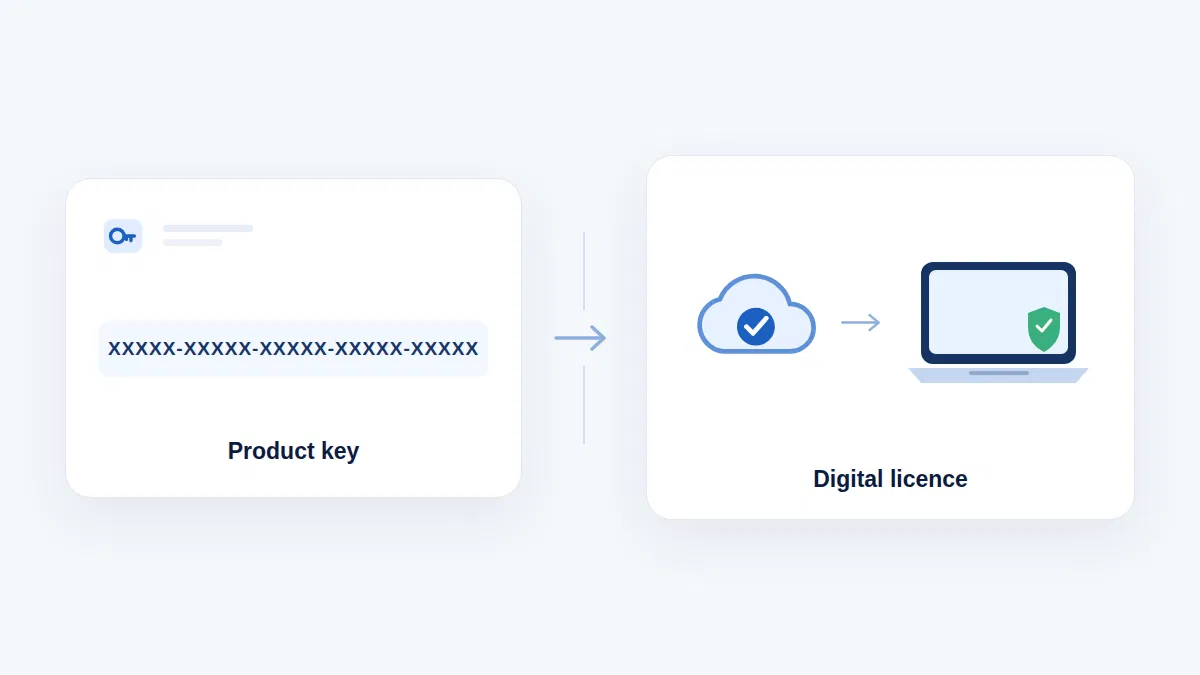
A digital licence is an activation record stored on Microsoft's servers and tied to your PC's hardware. You get one when a PC ships with Windows 10, when you upgraded from a genuine Windows 7 or 8.1, when you bought Windows from the Microsoft Store, or when you activated with a product key in the past. If your PC has a digital licence, a clean reinstall of the same edition activates automatically once online. Linking the licence to your Microsoft account (Settings > Update & Security > Activation > Add an account) means you can use the Activation troubleshooter to reactivate after a major hardware change such as a new motherboard.
Product key
A product key is a 25-character code in the format XXXXX-XXXXX-XXXXX-XXXXX-XXXXX. To use one after installation, open Settings > Update & Security > Activation, click Change product key, type the key and click Next. Windows contacts Microsoft's activation servers and, if the key is valid and matches the installed edition, activates within seconds. Keys come from retail boxes, the Certificate of Authenticity sticker on older PCs, OEM firmware, and licensed digital resellers.
Points to be clear about:
- A Windows 10 Home key activates Windows 10 Home only. It will not activate Pro, and vice versa. Windows 10 Home keys also activate Windows 11 Home if you later upgrade.
- Windows 7 and Windows 8.1 keys can still activate Windows 10 on many systems, but Microsoft officially ended that free upgrade path and it is not guaranteed.
- Activation does not require a phone call for most users; online activation is automatic. Phone activation remains available if online activation fails.
- Licence terms differ by product. OEM licences are tied to the first PC they are installed on; retail licences can be moved to a new PC after being removed from the old one. Before buying a licence, check which type you are getting and what its terms allow.
- Windows runs unactivated with a watermark and without personalisation options, but it is not a long-term solution and it does not change the end-of-support situation described below.
Need a genuine Windows 10 licence?
MMKeys supplies genuine Microsoft licence keys to customers in the USA and Canada with email delivery and activation support. Installation media is free from Microsoft; the licence is what we provide.
Windows 10 Home Windows 10 Pro All Windows editionsWe do not describe or recommend activation "bypasses", KMS scripts or cracked activators. Besides breaching Microsoft's licence terms, these tools are a leading source of malware infections on home PCs and can leave Windows in an unstable, un-updatable state.
Windows 10 Home vs Windows 10 Pro
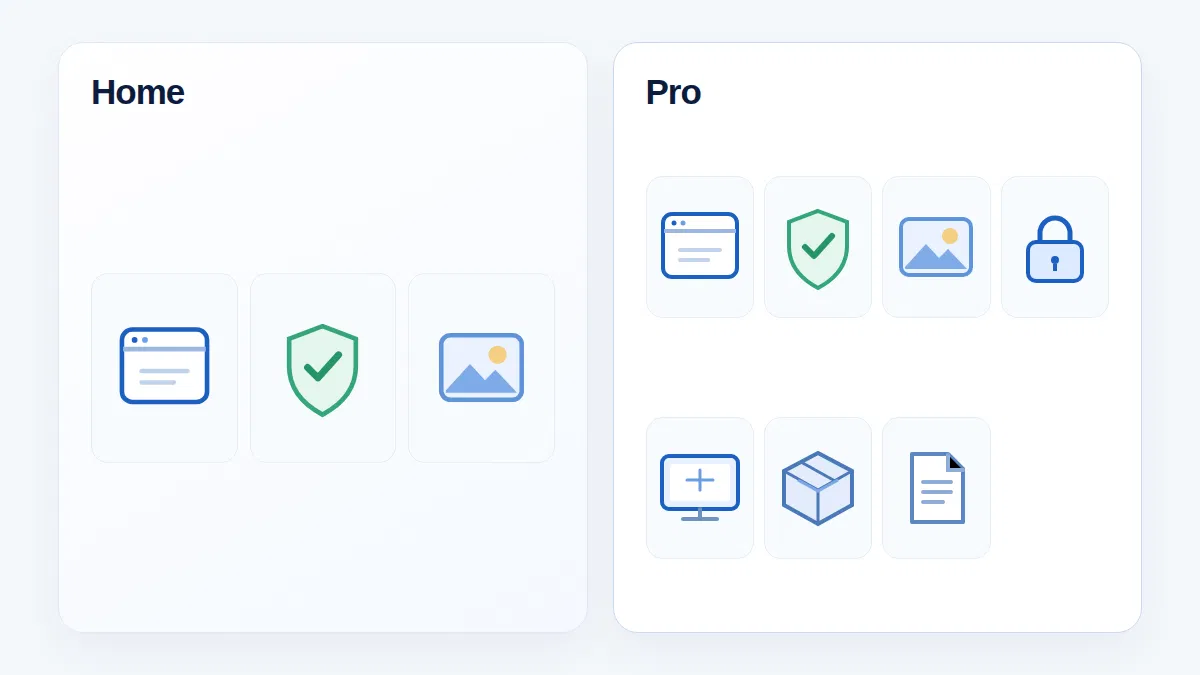
Because the ISO contains both editions, it is worth knowing what you would gain by installing Pro instead of Home. For everyday computing, gaming and office work, the two are identical in speed and compatibility; Pro adds management and security features that matter mainly to business and power users.
| Feature | Windows 10 Home | Windows 10 Pro |
|---|---|---|
| Core Windows experience, Edge, Store, Cortana, Xbox integration | Yes | Yes |
| Windows Hello, Windows Security (Defender), Firewall | Yes | Yes |
| Device encryption | Yes (on supported hardware with a Microsoft account) | Yes |
| BitLocker drive encryption with full management | No | Yes |
| Remote Desktop | Client only | Client and host |
| Hyper-V virtualisation | No | Yes |
| Windows Sandbox | No | Yes |
| Group Policy Editor (gpedit.msc) | No | Yes |
| Join a domain or Azure AD / Entra ID | No | Yes |
| Windows Update for Business (defer feature updates) | No | Yes |
| Assigned Access / Kiosk mode | No | Yes |
| Maximum RAM (64-bit) | 128 GB | 2 TB |
| Maximum CPU sockets | 1 | 2 |
| Gaming performance | Identical | Identical |
If you run a home office, store sensitive client data on a laptop, or want to run virtual machines, Pro is worth having; otherwise Home is the sensible choice. You can move from Home to Pro at any time by entering a Pro product key under Change product key, with no reinstall. For a deeper look at performance differences (there are none that matter), see our article on the best Windows OS for gaming.
Common Windows 10 ISO Download and Installation Errors
Most problems with the Windows 10 ISO fall into a dozen recognisable categories. Here is what causes each one and how to fix it without resorting to unofficial tools.
The Media Creation Tool fails or shows error 0x80072F8F or 0x80070005
These codes usually mean the tool cannot reach Microsoft's servers (a proxy, VPN or strict firewall) or lacks permission to write to the download folder. Run the tool as administrator, disconnect any VPN, temporarily pause third-party antivirus, and try again. If it still fails, download the ISO directly from the ISO page on another device instead.
"There was a problem running this tool" with no code
Typically a transient server issue or a corrupted download of the tool itself. Delete MediaCreationTool.exe, download a fresh copy, and run it from a local folder rather than a network or OneDrive-synced folder.
The ISO downloads but fails verification or Setup reports "corrupt" files
Compare the SHA-256 hash as described above. A mismatch means the download was interrupted; re-download using a wired connection if possible. If the hash matches but Setup still complains, the problem is the USB drive: try a different drive and re-create the media.
The PC will not boot from the USB
Check the firmware boot order and make sure the drive was written for the right mode (GPT/UEFI for modern PCs). On older machines, enable "Legacy boot" or "CSM". On some HP and Lenovo systems, Secure Boot must be temporarily disabled for third-party-written media, though Microsoft-created USB drives boot with Secure Boot on. Try a USB 2.0 port if the USB 3.0 ports are not recognised before the OS loads.
"We couldn't find any drives" or "Windows cannot be installed to this disk"
Setup cannot see your SSD because it needs a storage driver. On Intel 11th-generation and newer laptops, this is the Intel VMD/RST driver; on others it may be an NVMe driver. Download the storage driver from the laptop manufacturer, extract it to the USB drive, and click Load driver on the drive-selection screen. Alternatively, switch the SATA/VMD mode in firmware from "RAID/Intel RST" to "AHCI", which removes the need for the driver (back up first; this change can prevent an existing Windows installation from booting).
"Windows cannot be installed to this disk. The selected disk is of the GPT partition style" (or "has an MBR partition table")
You are booting the USB in the opposite mode to the disk's partition scheme. Reboot and pick the "UEFI:" boot entry for a GPT disk or the non-UEFI entry for an MBR disk. On a clean install you can also delete all partitions so Setup recreates them in the correct style.
Setup installed the wrong edition (Pro instead of Home, or Home instead of Pro)
This happens when the firmware contains a key for one edition and you own a licence for another, or when you picked the wrong entry on the edition list. Windows will not accept a Home key on a Pro installation. The fix is either to move up (enter a Pro key on a Home install, which upgrades in place) or to reinstall and choose the correct edition. To force the edition menu on a PC with a firmware key, create a text file named ei.cfg in the sources folder of the USB containing the lines [Channel] and Retail.
"This product key didn't work" or error 0xC004F050
Either the key is for a different edition, it has been mistyped (O versus 0, B versus 8), it is for a different version of Windows, or it has already been used on the maximum number of devices. Re-check the key and the installed edition under Settings > System > About. If the key came from a reseller, contact their support with the error code.
Error 0xC004C003 or 0xC004C008: "The activation server determined the specified product key is blocked" or "already in use"
The key has been blocked by Microsoft (common with keys sold in bulk from grey-market sources) or has been activated on another PC. Contact the seller; a legitimate seller will replace a blocked key. If you bought the key with the PC, use the Activation troubleshooter after signing in with the Microsoft account linked to the digital licence.
"Windows isn't activated" after a hardware change
Replacing a motherboard makes Windows think it is on a new PC. Sign in with the Microsoft account you linked to the digital licence, open the Activation troubleshooter, choose "I changed hardware on this device recently", and select the PC from the list. If the licence was never linked, you will need to enter the product key or contact Microsoft support.
Hardware incompatibility: no Wi-Fi, no sound, or a black screen after install
Windows 10 22H2 media includes generic drivers, but very new hardware (Wi-Fi 7 adapters, late-model Intel Arc or AMD RDNA 4 graphics) may ship with Windows 11 drivers only. Connect by Ethernet or USB tethering, run Windows Update, then install drivers from the manufacturer. If the manufacturer offers no Windows 10 driver at all, that hardware is effectively Windows 11-only.
Setup loops back to the installation screen or the PC boots into Setup every time
The USB drive is still first in the boot order. Remove it after the first restart, or change the boot order back to the internal drive.
Is Windows 10 Home Still Safe to Use in 2026?
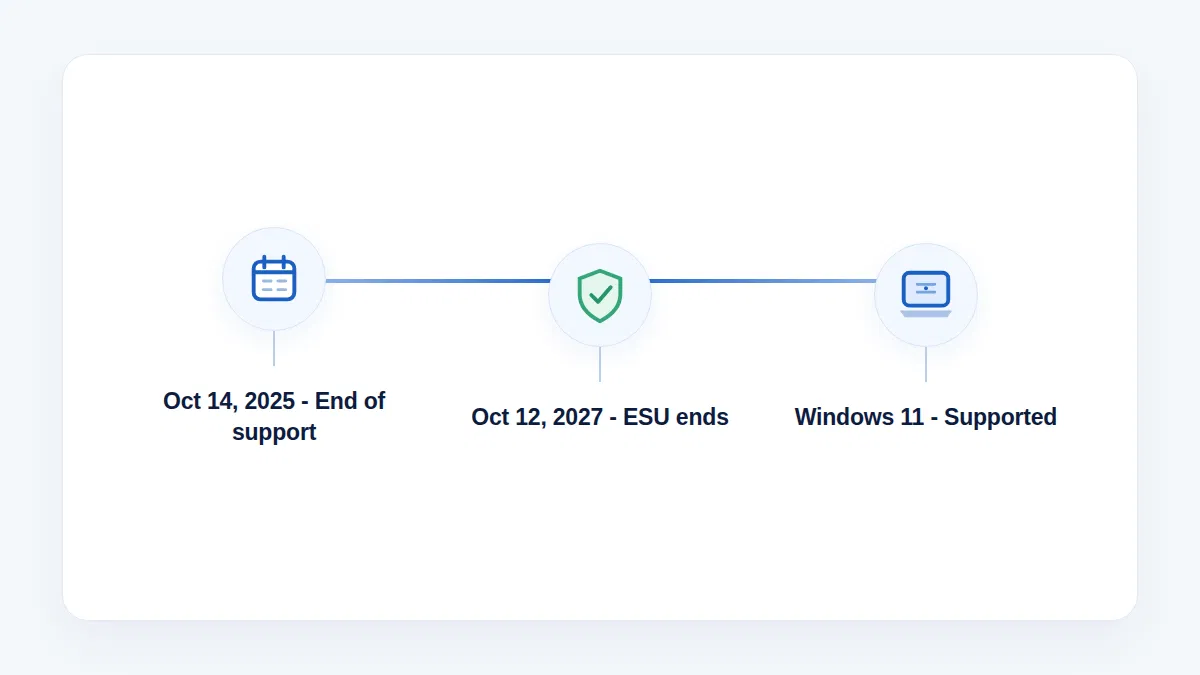
This is the question anyone installing Windows 10 today needs to answer honestly. Windows 10 reached its end of support on October 14, 2025. Microsoft no longer provides free security updates, feature updates or technical support for Windows 10 Home and Pro. The latest and final feature version is 22H2; it still receives monthly cumulative updates only for devices enrolled in Extended Security Updates.
What end of support means in practice
- The operating system keeps working. Nothing switches off, and your software and files continue to function.
- Newly discovered vulnerabilities in Windows 10 are not patched on unenrolled PCs. Over time this makes the system progressively more exposed to malware, ransomware and browser-based attacks.
- Microsoft Defender antivirus definitions continue to update for a period, but definitions cannot fix flaws in the operating system itself.
- Microsoft 365 apps continue to receive security updates on Windows 10 until October 10, 2028, but Microsoft no longer supports them on Windows 10 and recommends moving to Windows 11.
- Third-party software and hardware vendors gradually drop an unsupported Windows version from their support lists, as happened with Windows 7 and 8.1. Expect new hardware, games and applications to list Windows 11 as the minimum over the coming years.
Extended Security Updates for consumers
Microsoft offers a consumer Extended Security Updates (ESU) program for Windows 10, which delivers critical and important security updates until October 12, 2027. Enrolment is through Settings > Update & Security > Windows Update, where an "Enroll now" link appears on eligible PCs running 22H2 with the latest updates. There are three ways to enrol:
- At no additional cost if you back up your PC settings to your Microsoft account with Windows Backup;
- By redeeming 1,000 Microsoft Rewards points; or
- By a one-time purchase of US$30 (or local currency equivalent plus tax).
One consumer ESU licence can be used on up to 10 devices linked to the same Microsoft account. ESU does not include new features, non-security fixes or technical support. Business customers have a separate paid ESU program that runs for up to three years.
When Windows 11 is the better choice
If the PC meets Windows 11's requirements (a supported 64-bit processor, 4 GB RAM, 64 GB storage, UEFI with Secure Boot and TPM 2.0), Windows 11 is the better option in 2026. It is fully supported, receives monthly security and feature updates, and the upgrade from a licensed Windows 10 is free through Windows Update. A Windows 10 Home licence activates Windows 11 Home. Our complete Windows 11 upgrade guide covers the process, and the Windows 11 Pro installation guide covers a clean install. Windows 11 Home and Pro licences are also available from MMKeys: Windows 11 Home and Windows 11 Pro.
Windows 10 remains a reasonable choice in 2026 in a few situations: the hardware does not meet Windows 11's requirements and replacing it is not practical; you rely on software or a peripheral that only works on Windows 10; or you need a 32-bit operating system. In every one of those cases, enrol in ESU, keep the PC behind a router firewall, use an up-to-date browser, and plan a path off Windows 10 before October 2027.
Summary
Microsoft's official Windows 10 ISO is free, it is still available in 2026, and it contains both Windows 10 Home and Windows 10 Pro. Download it from microsoft.com using the Media Creation Tool (on Windows) or the direct ISO page (on anything else), verify the SHA-256 hash, write it to an 8 GB USB drive, and install. The edition is chosen by your licence or by the key you enter, and activation needs a digital licence or a genuine product key, which the ISO does not include. Windows 10 is past its end of support, so enrol in Extended Security Updates if you stay on it, and move to Windows 11 when your hardware allows.
Frequently Asked Questions
Is the Windows 10 Home ISO free to download from Microsoft?
Yes. Microsoft provides the Windows 10 installation files free of charge through the Media Creation Tool and the direct ISO download page. The licence to activate Windows is separate and is not free unless your PC already has a digital licence.
Can I still download Windows 10 in 2026?
Yes. As of late 2026 the Windows 10 download page at microsoft.com/software-download/windows10 still offers version 22H2 through both the Media Creation Tool and the direct ISO download. Microsoft has not announced a removal date, but the page now carries an end-of-support notice.
Why can't I find a "Windows 10 Home" option in the edition list?
Microsoft publishes a single "Windows 10 (multi-edition ISO)" that includes Home and Pro. Setup installs Home automatically when it finds a Home key in your PC's firmware or when you enter a Home product key. If no key is found, Setup shows an edition menu where you can select Windows 10 Home.
Which should I choose, 64-bit or 32-bit?
Choose 64-bit. Every desktop and laptop processor sold in the last 15 years is 64-bit, the 64-bit version supports more than 4 GB of RAM and runs modern software, and Windows 11 is 64-bit only. Pick 32-bit only for a machine with a 32-bit-only CPU or less than 2 GB of RAM.
How big is the Windows 10 ISO?
The 64-bit English ISO for version 22H2 is about 5.8 GB; the 32-bit version is about 4.1 GB. You need a USB drive of at least 8 GB to create installation media.
Do I need a product key to install Windows 10 Home?
No. You can click "I don't have a product key" during setup and install Windows 10 Home. You need a product key or an existing digital licence to activate it afterwards.
Will Windows 10 activate automatically after a clean install?
If the PC previously ran an activated copy of the same edition, or has an OEM key in its firmware, yes. Windows contacts Microsoft's servers and activates once the PC is online. If you changed the motherboard or the PC never had Windows 10, you will need a product key.
Can I use a Windows 7 or Windows 8.1 key to activate Windows 10?
Microsoft ended the free upgrade offer and, since late 2023, has been closing the ability to activate Windows 10 and 11 with Windows 7 and 8.1 keys. Some keys still work but it is no longer reliable; a Windows 10 key is the dependable route.
What is the difference between the Media Creation Tool and the ISO?
The Media Creation Tool is a small program that downloads Windows and can either build a bootable USB directly or save an ISO file. The ISO is the raw installation image. On a Windows PC Microsoft offers the tool; on other devices it offers the ISO directly. Both produce the same Windows 10 22H2 installation.
Can I install Windows 10 Home on a Mac?
On Intel Macs, yes, through Boot Camp Assistant, which accepts the Microsoft ISO. Apple Silicon Macs (M1 and later) cannot run the standard x64 Windows 10; they require Windows 11 on ARM in a virtual machine.
Does a clean installation delete my files?
Yes. Choosing "Custom" and deleting or formatting the partitions erases everything on that drive. Back up your files first. If you want to keep files and programs, run setup.exe from inside Windows and choose "Keep personal files and apps" instead.
Is Windows 10 Home still supported?
No. Windows 10 Home and Pro reached end of support on October 14, 2025. Security updates are available only to PCs enrolled in the consumer Extended Security Updates program, which runs until October 12, 2027.
How much does Windows 10 Extended Security Updates cost?
For consumers, ESU is free if you sync your PC settings with Windows Backup, costs 1,000 Microsoft Rewards points, or is a one-time purchase of US$30 plus tax. One licence covers up to 10 devices on the same Microsoft account.
Can I upgrade from Windows 10 Home to Windows 11 for free?
Yes, if the PC meets Windows 11's hardware requirements. The upgrade is offered through Windows Update, and your Windows 10 Home licence becomes a Windows 11 Home licence.
Can I upgrade Windows 10 Home to Pro without reinstalling?
Yes. Go to Settings > Update & Security > Activation, click "Change product key", and enter a Windows 10 Pro key. Windows upgrades the edition in place and keeps your files and programs.
Is it safe to download Windows 10 from a site other than Microsoft?
We do not recommend it. Third-party and torrent ISOs may be modified, cannot be verified against Microsoft's published hashes, and often bundle malware or activation cracks. Microsoft's own download is free, so there is no benefit in using another source.
What is the latest version of Windows 10?
Version 22H2 is the final feature version of Windows 10. Microsoft continues to release monthly cumulative updates for it only under the Extended Security Updates program.
Official Microsoft Sources
- Download Windows 10 (Media Creation Tool)
- Download Windows 10 Disc Image (ISO File)
- Windows 10 system requirements
- Activate Windows
- Create installation media for Windows
- Windows 10 support has ended on October 14, 2025
- End of support for Windows 10 and Extended Security Updates
- Windows 10 release information
Last reviewed: November 2026. Microsoft may change its download pages and programs at any time; check the links above for the current status.